
Studio is an AI coding agent built into Bot-Hosting.net. You open it on one of your deployments, describe what you want in plain words, and it reads your project, writes the code, installs what is missing, restarts the app and checks that it really works. It runs in your browser, on the server where your app already lives, so there is nothing to install and nothing to copy back. It works on Discord and Telegram bots, websites, APIs and scripts.
The facts in short
- Where: on every deployment, with the Open Studio button. Nothing to install, it works on a phone too.
- Works on: Discord and Telegram bots, websites, APIs and scripts.
- What it does: reads your files and logs, writes and edits code, installs packages, restarts the app, then checks the result in the console and on the public address.
- Models: 11 models from DeepSeek, OpenAI, Anthropic, Google, xAI, Moonshot and Z.ai. The default is DeepSeek V4.1 Flash.
- Safety net: every change is listed with a diff, and Restore this point puts the files back.
- Price: paid with AI Tokens, counted in proportion to what each model costs. Packs start at €2.99 (before VAT) for 2 million AI Tokens, and AI Tokens never expire. Your own provider key works too.
What a Studio request looks like
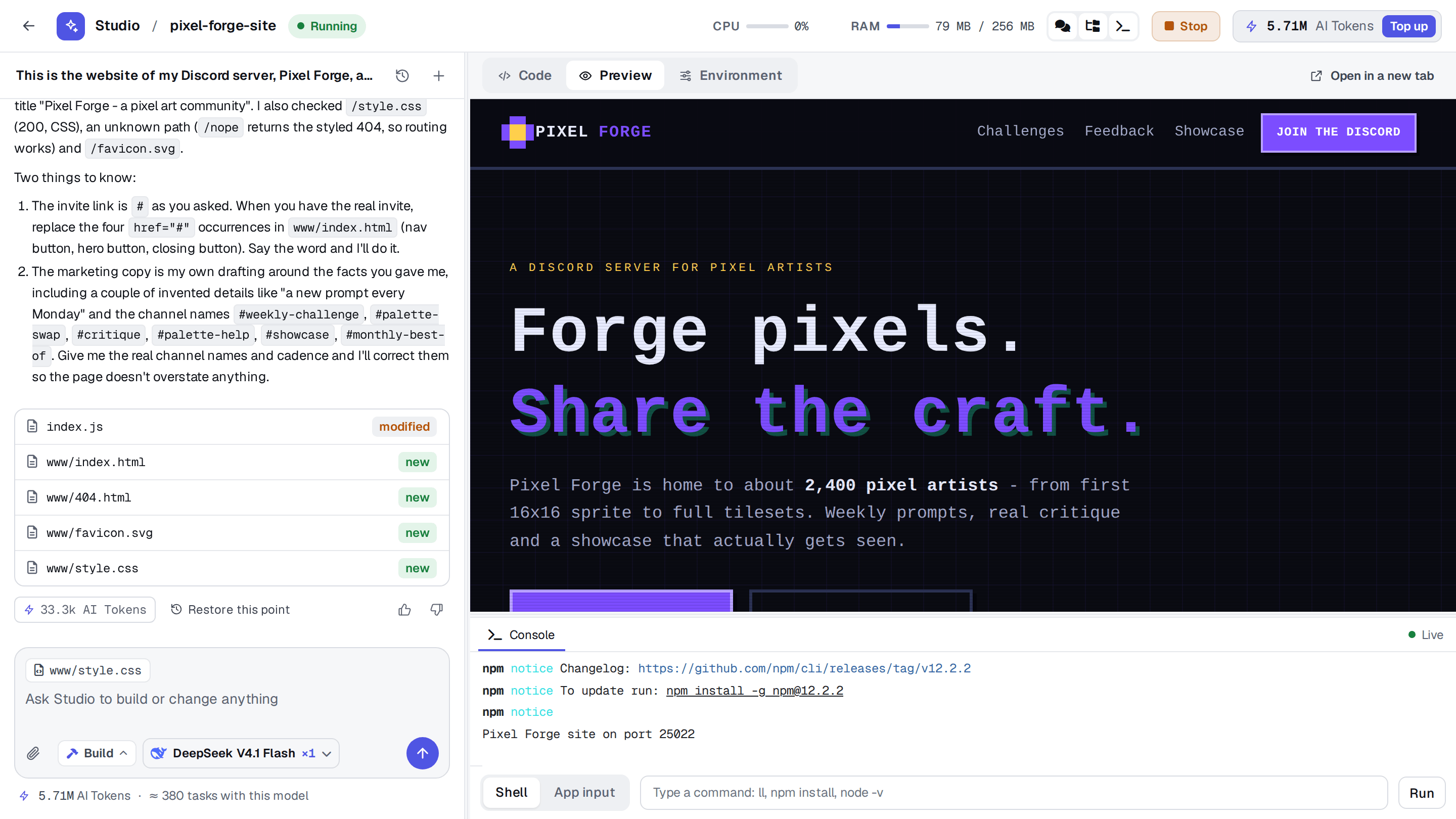
To show what a request looks like, we gave Studio a deployment with a single index.js that printed “Coming soon”, and asked:
This is the website of my Discord server, Pixel Forge, a community of about 2,400 pixel artists. Turn it into a real landing page: a hero with a “Join the Discord” button (leave the invite link as # for now), three cards for weekly challenges, feedback channels and the art showcase, and a dark pixel-art look. Keep it a plain Node server with no build step. Then put it online and check that it works.
In about a minute and a half, on the default model, DeepSeek V4.1 Flash, Studio:
- read the project and planned the work in four steps,
- wrote the landing page, a stylesheet, a 404 page and a favicon, and turned
index.jsinto a small static file server, - gave the deployment a public address and restarted it,
- requested the page, the stylesheet and a missing path, to check that each one answered as it should,
- reported what it changed, and pointed out the details it had made up (channel names, a weekly prompt) so you can correct them.
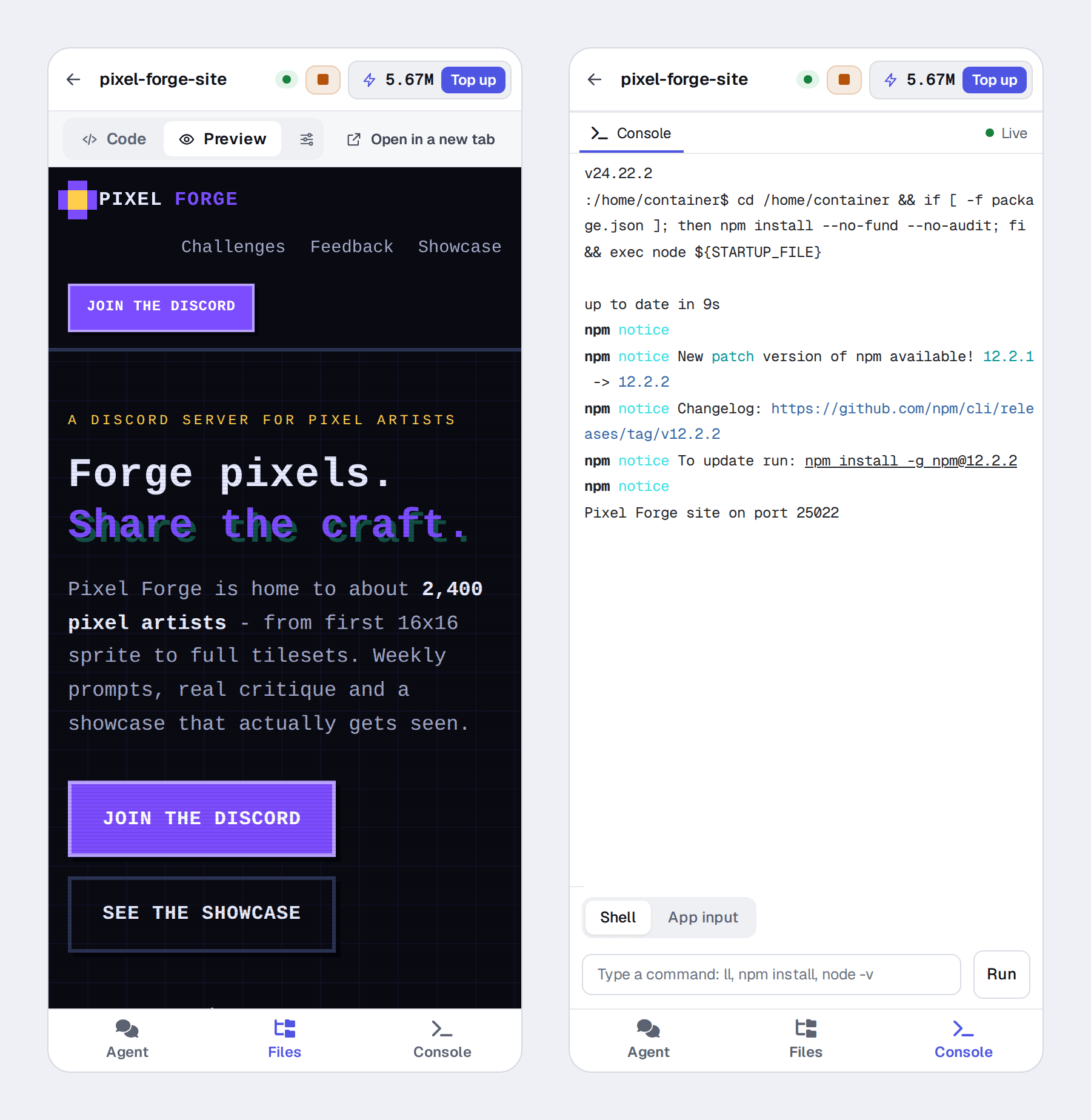
The whole request cost 33,300 AI Tokens, about 5 cents at the price of the smallest pack. The cost of every answer shows under it, next to the files it touched.
Studio on a Discord or Telegram bot
Studio works the same way on a bot. Ask for a new slash command and it writes the code, restarts the bot and reads the console to make sure it logged in. If something it cannot invent is missing, such as a bot token, it tells you which environment variable to set instead of pretending the bot is online.
When a bot crashes, the console names the cause and offers Fix in Studio, which opens Studio with the error already in the message.
Everything in one screen
Studio is one screen split into three panels:
- Agent: the conversation. You describe what you want, Studio works and tells you what it did.
- Workspace: the Code tab (file tree and editor, with the files Studio changed marked), a live Preview of your site, and the Environment tab for your environment variables.
- Console: the live logs, a shell, the input of your app, and the start, stop and restart buttons.
You can hide, show and resize each panel, and Studio remembers your layout for each deployment. The top bar shows the state of the app, its CPU and memory, and your AI Token balance.
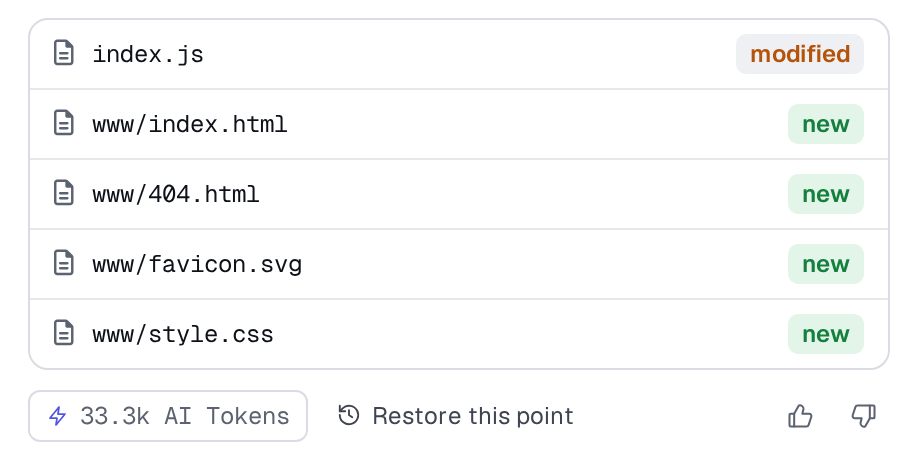
On a phone, the three panels become three tabs, Agent, Files and Console, so you can ask for a fix and watch the console from anywhere.
You can also drop up to four files into the message: a screenshot for the models that can see images, or a log, a config file or a code snippet as text. Files are read in your browser and sent to the model with your message. Nothing is saved to your deployment.
See every change, undo any of it
Every request records a checkpoint of the files it changed. Click a file in the answer to open its diff, and see exactly what was added and removed.
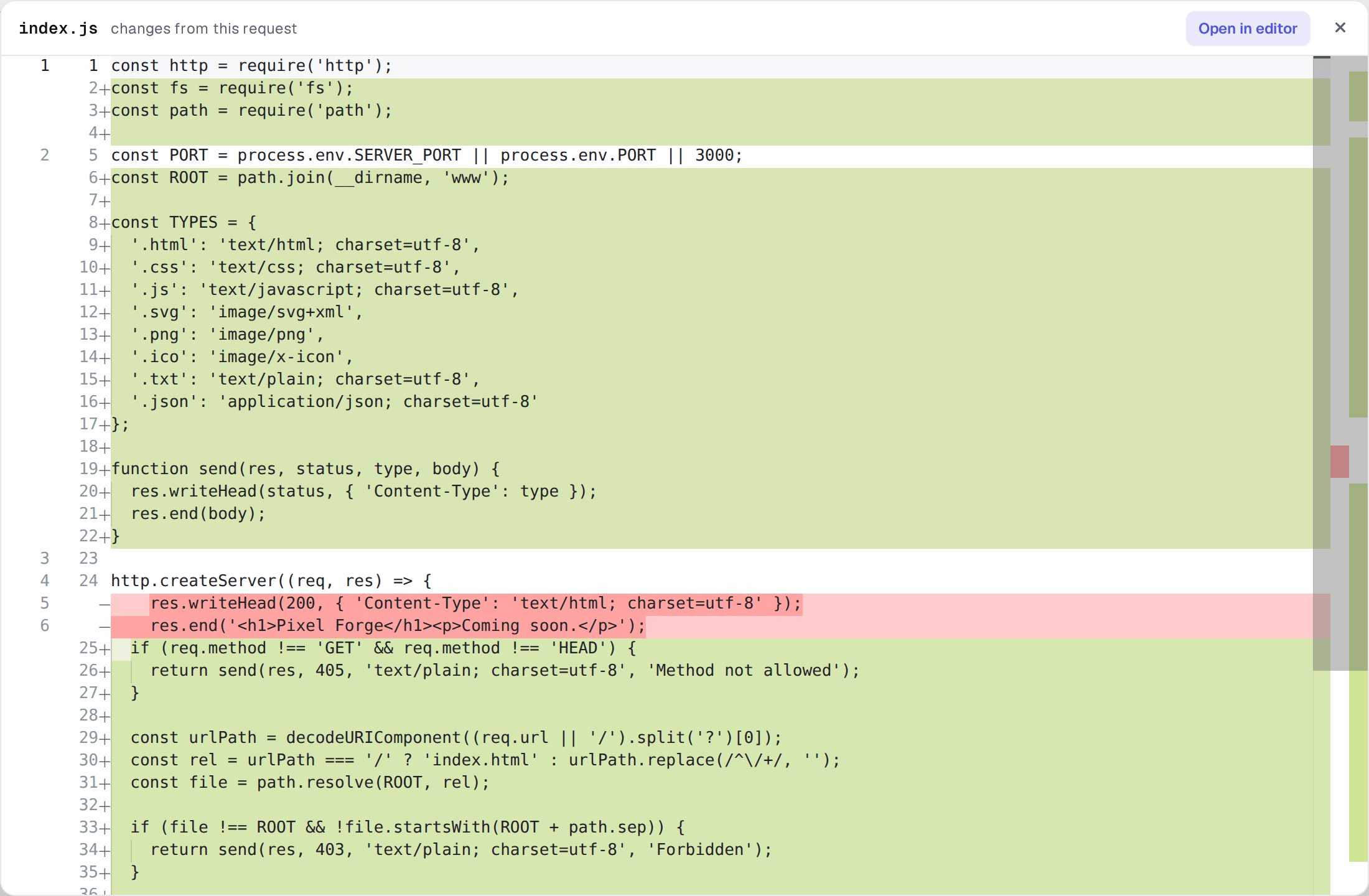
If you do not like the result, Restore this point brings a file, or the whole request, back to how it was. It is the reason you can let Studio try something bold: the worst case is one click away.
Plan, Build or Auto
The mode button next to the message box decides how much freedom Studio has.
| Mode | What Studio does |
|---|---|
| Plan | Explores the project and presents a plan before touching anything. You start the build when the plan suits you. |
| Build | Does the work, and asks before anything that cannot be undone. This is the default. |
| Auto | Keeps going without asking, on this deployment, until you switch back. |
A Thinking setting sets how hard the model thinks before it acts. Normal is the default and the best value: in our tests it took fewer steps and hit fewer dead ends for the same price. Deep costs more and is worth a try when Normal keeps missing. Off answers straight away, cheapest per step but more likely to go in circles on hard work.
Which AI models can Studio use?
The model button opens every model Studio can work with, sorted into four groups. As of November 2026:
| Group | Models |
|---|---|
| Economical | DeepSeek V4.1 Flash (default), GPT-6 Luna |
| Advanced | GLM 5.3, Gemini 3.8 Flash, Kimi K2.7 Code |
| Premium | GPT-6.1 Sol, Claude Sonnet 5.5, Grok 4.7 |
| Ultra | Claude Opus 5.5, Claude Fable 5.1, GPT-6 Astra |
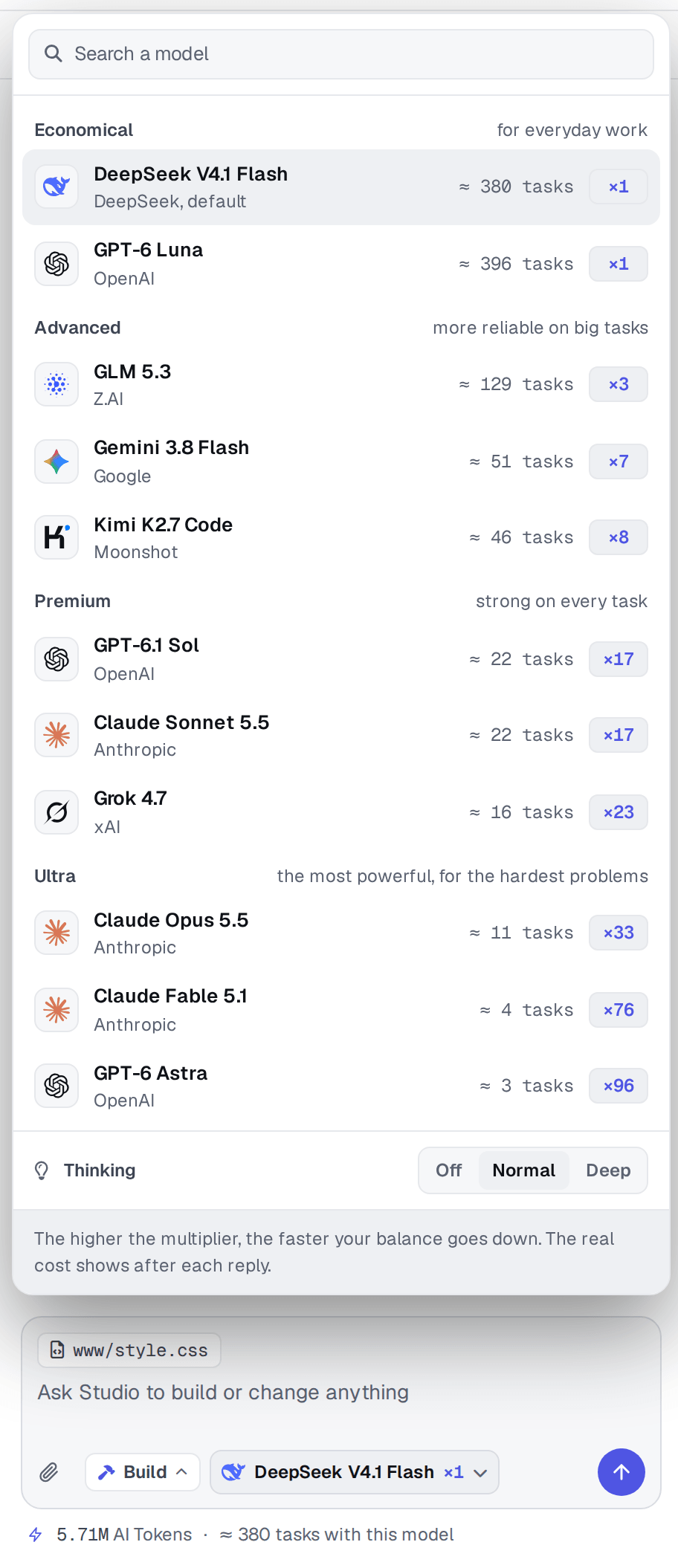
Each model shows a multiplier: how much a typical task costs compared with the default model. ×1 costs the same, ×20 spends your AI Tokens twenty times faster. Next to it, Studio estimates how many tasks your balance buys with that model, and the same estimate stays under the message box once you have chosen.
The default model handles most everyday work: new features, fixes, small sites and bots. The bigger models are worth it on large projects and hard bugs. Your choice is remembered on that device, and you can also set it in Account > AI assistant, under AI models.
How much does Studio cost?
- AI Tokens are counted in proportion to what each model costs, so a bigger model spends them faster. Under the message box, Studio shows roughly how many tasks your balance buys with the chosen model, based on what recent tasks cost.
- Packs start at €2.99 (before VAT) for 2 million AI Tokens. AI Tokens never expire.
- Studio opens once you have AI Tokens from a pack, any size, on any plan, the free hosting plan included. The free weekly allowance is there to try the chat assistant, not to run a coding agent.
- With your own provider key, activated on the AI assistant page, nothing is spent from your balance.
Studio or an external AI agent?
Bot-Hosting also works with AI agents such as Claude, ChatGPT, Cursor and VS Code, through its official MCP server. Both can build and fix what you host. The difference is where the AI runs and who pays for it.
| Studio | External AI agent | |
|---|---|---|
| Where you use it | In your browser, on the deployment | In Claude, ChatGPT, Cursor, VS Code or a terminal |
| Setup | None | Connect the app once, with OAuth |
| AI model | Pick any of the 11 models | The one in your AI app |
| Paid with | AI Tokens on Bot-Hosting | Your AI subscription |
| Diff and one-click undo | Yes | Through the agent, with the file history |
If you already pay for an AI app and live in it, read AI agents on Bot-Hosting.net and how to make a Discord bot with AI. If you want to describe a change and watch it happen next to your app, Studio is the shorter path.
Get better results
- Point at the file or the feature. “Fix the slash command registration in commands/ping.js” beats “my bot is broken”.
- Let it read the error. If the app crashed, say so and let Studio open the console itself, or use Fix in Studio on the crash.
- Review the diff before you move on. It is faster than debugging a change you did not notice.
- Keep one thread per subject. A fresh thread is cheaper and sharper than a long one that drifted. Older threads stay in the history, so you can come back to a task days later.
FAQ
What is Studio on Bot-Hosting?
Bot-Hosting Studio is an AI coding agent built into every Bot-Hosting deployment. It reads your files and logs, writes and edits code, installs packages, restarts the app and checks the result in the console and on the public address, all in your browser.
Is Studio free?
Studio opens once you have AI Tokens from a pack, on any plan, the free hosting plan included. Packs start at €2.99 (before VAT) for 2 million AI Tokens, and AI Tokens never expire. With your own provider key, nothing is spent from your balance.
Can Studio build or fix a Discord bot?
Yes. Ask for a new slash command or a fix and it writes the code, restarts the bot and reads the console to check that it logged in. If a bot token is missing, it tells you which environment variable to set.
Which AI models does Studio use?
Eleven models from DeepSeek, OpenAI, Anthropic, Google, xAI, Moonshot and Z.ai. The default is DeepSeek V4.1 Flash. Larger models such as Claude Opus 5.5 or GPT-6 Astra cost more per task, shown as a multiplier.
Can I undo what Studio changed?
Yes. Every request records a checkpoint. Click a file to see its diff, and Restore this point brings that file, or the whole request, back to how it was.
Do I need to install anything?
No. Studio runs in the browser, on the server where your app already lives, and works on a phone too.
Start with Studio
- Create a free Bot-Hosting account. No card needed.
- Create a deployment: a Discord bot, a website, a Telegram bot or anything else, or start from a template.
- Click Open Studio, get a pack if you do not have one, and describe what you want.